Claude Course: Learn Claude AI for Work in 8 Free Lessons
Eight short lessons that take you from your first good prompt to Projects, Skills, connectors, tasks and Claude Code. Each one has a goal, steps, a prompt to copy and a check.
By Yotam DahanUpdated 16 min readClaude Code
This free Claude course teaches you to use Claude, Anthropic's AI assistant, for real work in eight short lessons: prompts, Projects, Skills, connectors, whole tasks handed off, Claude Code without coding, and the right plan. Every lesson has one goal, a few steps, a prompt to copy and a list of what to check, so each one ends with something you can use the same day.
How this Claude AI course works
Take one lesson per sitting, in order, with your own work as the example: a real email, price list or weekly report. That is the point of a practical Claude training course: you finish with work you can use, not notes. You can follow along on claude.ai, in Claude Desktop or in the mobile apps. Every feature, plan and limit below was checked against Anthropic's Help Center and Claude's pricing page on October 25, 2026.
| Lesson | What you will be able to do | Works on Free |
|---|---|---|
| 1. Chat basics and prompts | Get a usable answer on the first try | Yes |
| 2. Projects and files | Give Claude your documents and rules once | Yes |
| 3. Skills | Save a procedure Claude follows every time | Yes |
| 4. Connectors | Let Claude read the apps you already use | Yes |
| 5. Tasks (formerly Cowork) | Hand off a multi-step job and get a finished file | No |
| 6. Claude Code for non-coders | Let Claude work on a folder of your files | No |
| 7. Plans, models and limits | Pick a plan and make your usage last | Yes |
| 8. Your weekly routine | Combine everything into one recurring job | Partial |
Lesson 1: Chat basics and prompts that work
Goal: get an answer you can use without five rounds of corrections.
Anthropic's prompting guide suggests treating Claude like "a brilliant but new employee who lacks context". A good prompt gives that context up front.
- Say what it is for. One line on the business, the reader and the result you need.
- Name the output. Length, tone and structure, such as "five bullets" or "a reply under 120 words".
- Give the material. Paste the email or attach the file; Claude cannot guess your prices.
- Ask it to ask. "Ask me up to three questions first" stops it from filling gaps with guesses.
- Change one thing per reply. "Shorter, and drop the apology" beats a list of six fixes.
- Save your standing preferences. Rules you repeat, like spelling or tone, go in Settings > Your Claude (Settings > Account in the older layout), where they apply to every conversation.
I run [YOUR BUSINESS] and I need [THE RESULT, FOR EXAMPLE A REPLY TO A CLIENT WHOSE ORDER ARRIVED LATE].
It is for [WHO WILL READ IT] and should make them [WHAT THEY SHOULD DO OR FEEL].
Here is the material: [PASTE THE EMAIL, NOTES OR FIGURES].
Format: [LENGTH, TONE AND STRUCTURE].
Before you write, ask me up to three questions if anything important is missing. Do not invent facts, prices or names.
With a brief like that, the first reply is often a question rather than a draft:
- You:
Draft a reply to this client. Their lunch order for 24 people arrived 25 minutes late. [EMAIL PASTED]
- Claude:
Before I draft it: do you want to offer something, such as a discount on the next order, or only apologize? And should it come from you or from the team?
What to check
0 of 3 done
Why each part of the brief matters is explained in the prompt and context basics of our guide on how to learn AI.
Lesson 2: Projects and files
Goal: give Claude your documents and rules once, instead of pasting them into every chat.
To add a file to one chat, click + in the message box and choose Add files or photos, or drag it in. Claude reads PDF, Word, CSV, text and image files, plus Excel once code execution is on, per Anthropic's file upload article.
files per chat
per file in a chat
pages per PDF (visuals are read up to page 100)
per file in a Project
From the Help Center article on uploading files, checked October 25, 2026.
A Project is a workspace with its own files, instructions and memory, shared by every chat inside it. Anthropic's Projects article says Projects work on every plan, with up to five on Free.
- Create it. Open Projects in the sidebar and click + New Project. Claude cannot see the name or description.
- Add three to five core files. A price list, your service descriptions and one example of work you are proud of.
- Set project instructions. Click Set project instructions and paste the prompt below.
- Test it in a new chat inside the project. Ask something only your files can answer. Older chats move in with Add to project.
You are helping [YOUR NAME OR ROLE] at [BUSINESS], which sells [WHAT YOU SELL] to [WHO YOUR CUSTOMERS ARE].
Use the files in this project as the source of truth for prices, policies and product details. If they do not cover something, say so.
Write in [TONE] and [LANGUAGE AND SPELLING]. Keep answers short unless I ask for detail.
Never invent figures, quotes or customer names.
What to check
0 of 3 done
Claude Code has its own version of project instructions, a file called CLAUDE.md: see what to put in a CLAUDE.md file.
Lesson 3: Skills
Goal: turn a job you explain again and again into a skill that Claude follows on its own.
A skill is a folder with a SKILL.md file: a short description of when to use it, plus the steps. Claude reads only the descriptions until a request matches one. Skills work on every plan, and Anthropic's skills article lists built-in ones for Excel, Word, PowerPoint and PDF files.
- Turn on code execution. In Settings > Capabilities, switch on Code execution and file creation (called Create and edit files in the newer Settings layout).
- Switch on example skills under Customize > Skills.
- Do the job once in a chat, correcting Claude until the result is right.
- Ask Claude to turn the chat into a skill with the prompt below, then read the draft before you save it.
- Or upload one: zip the skill folder itself, then click +, Create skill and Upload a skill. Test it with three phrasings you would really use.
Turn the job we just finished into a skill called [SKILL-NAME].
Keep the steps that worked and turn every correction I made into a rule.
Write a description under 200 characters that says when to use it, in the words I would type.
Show me the SKILL.md before you save anything.
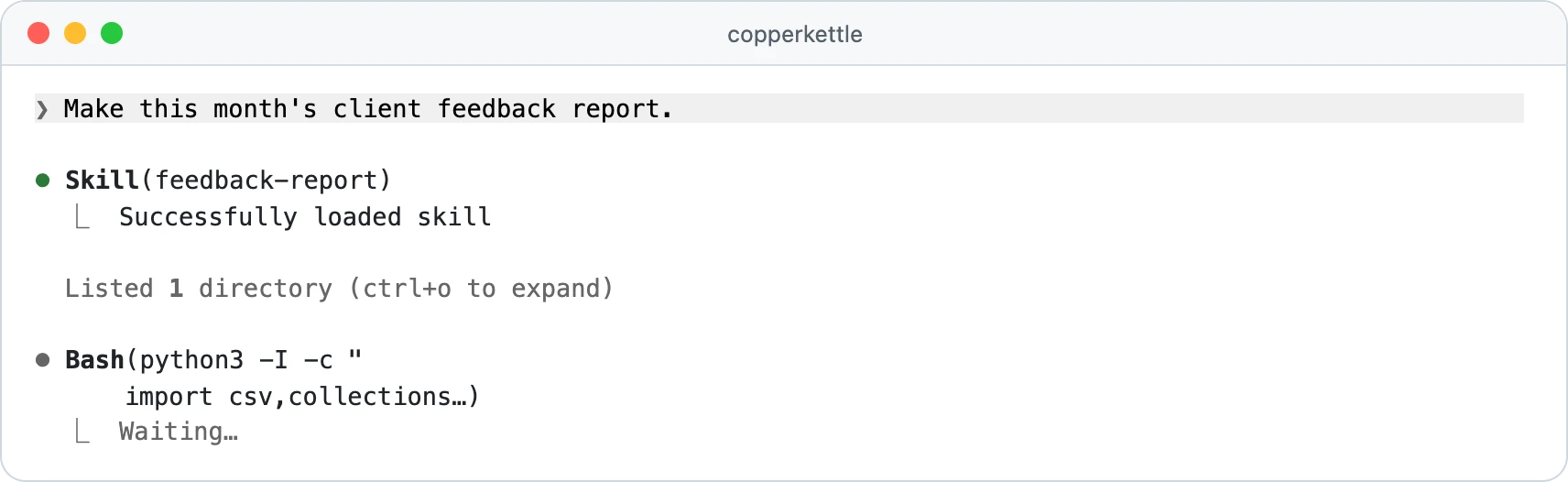
Skills you switch on in Claude also load in Claude Code (version 2.1.273 or later) when you sign in with the same account. Here is one at work:
What to check
0 of 4 done
The full walkthrough, with a SKILL.md you can copy, is in how to create a Claude skill, and our Claude skills directory lists tested ones.
Lesson 4: Connectors
Goal: let Claude read one app you use every day, safely.
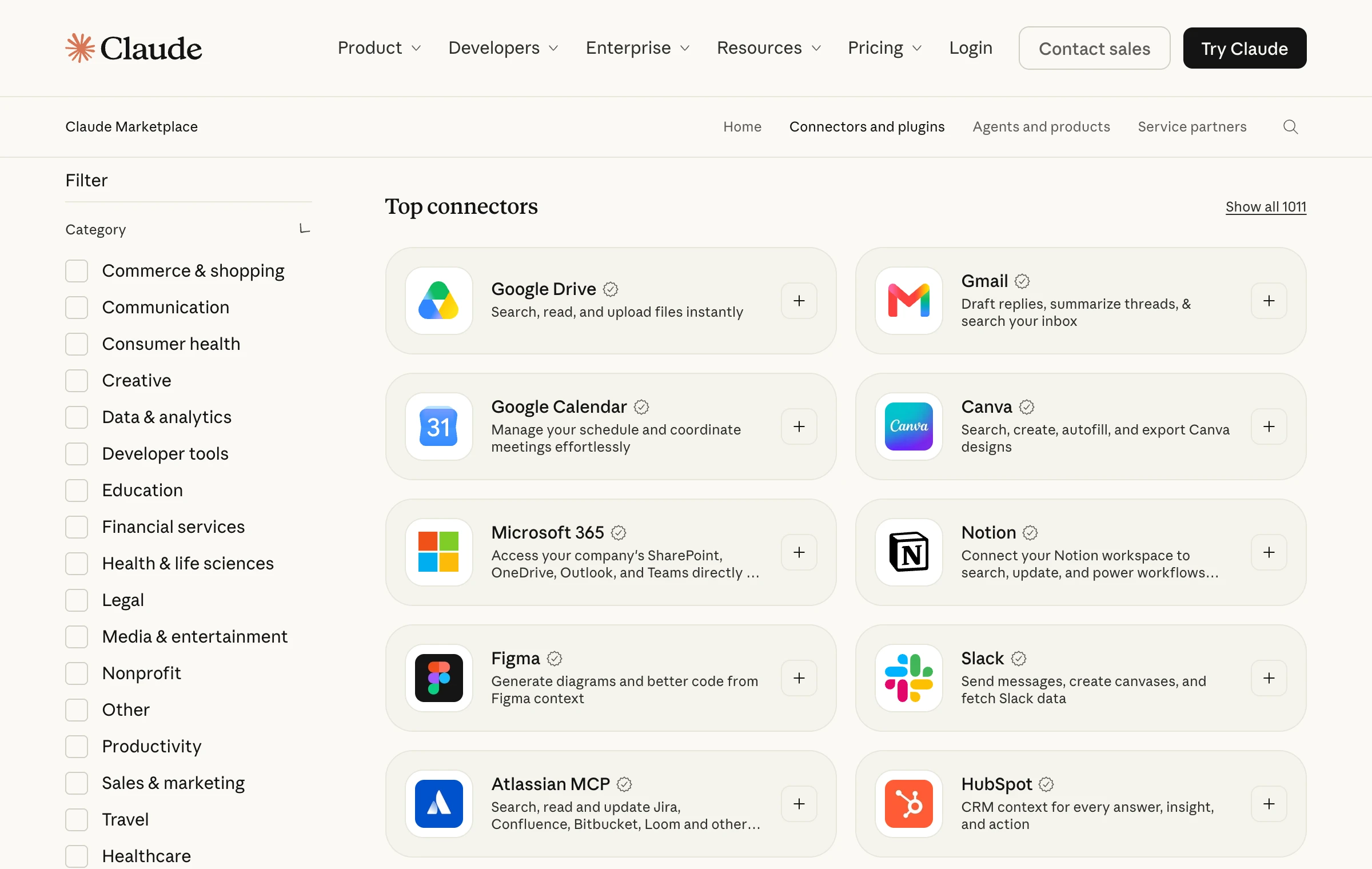
Connectors let Claude search, read and act in apps such as Google Drive, Gmail, Slack and Notion. They work on every plan, and Claude reaches only what your own account can, says the connectors article.
- Open the directory. Go to Customize > Connectors and click + next to Connectors.
- Connect one app. Read what it can read and write, click Connect and sign in.
- Switch it on for a chat. Click + in the message box (or type
/), hover over Connectors and toggle the app on. - Start read-only. Ask for a search or a summary before you ask it to create or send anything.
- Keep the list short. With 10 or more connectors on, Anthropic suggests setting Tool access to On demand.
On Team and Enterprise plans, an owner adds each connector for the organization first and can block write actions.
Find [THE DOCUMENT OR THREAD] in my [CONNECTED APP] and summarize what changed since [DATE] in five bullets.
List the exact files or messages you used.
Do not create, edit, send or delete anything.
What to check
0 of 3 done
For how connectors work under the hood, read what an MCP server is, or browse the connectors that work with the Claude app.
Lesson 5: Hand off a whole task (Cowork, now part of Claude)
Goal: describe a multi-step job once and get a finished file back.
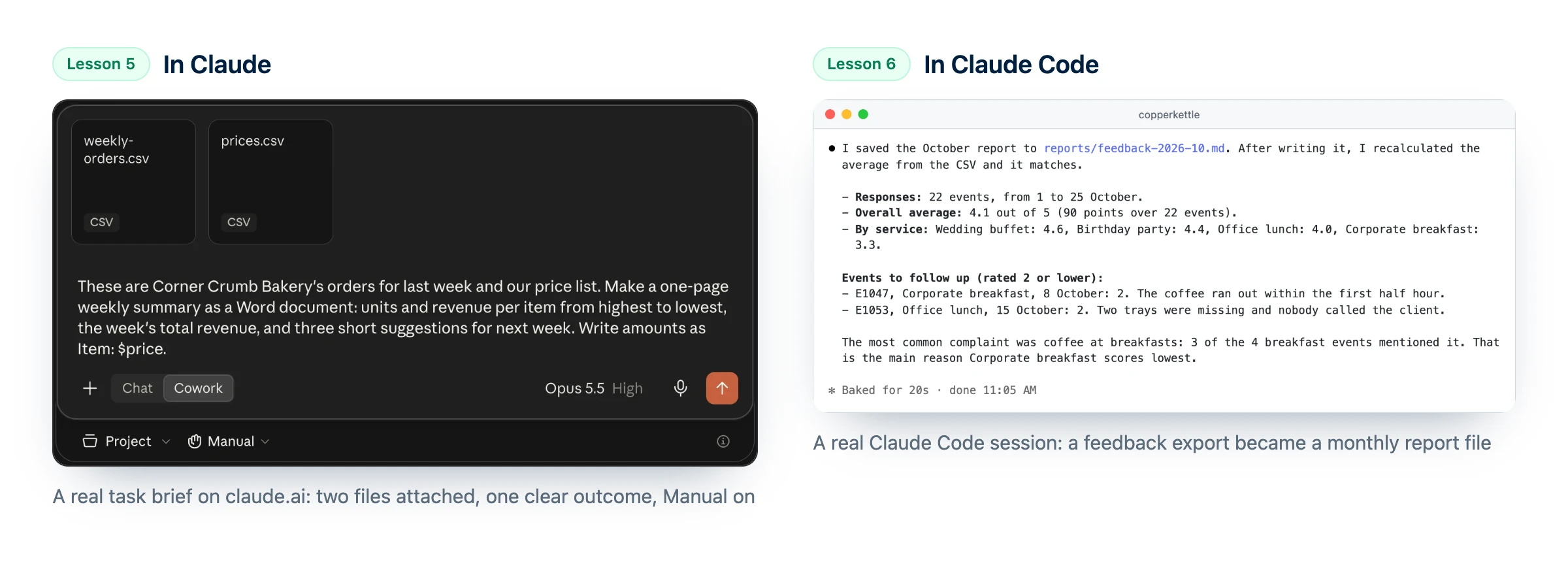
On September 16, 2026, Anthropic began merging Cowork, its agent for office work, into Claude itself. There is no mode to pick: you describe the outcome, and bigger jobs come back as documents, spreadsheets with working formulas or decks that open in PowerPoint, per the Help Center article on the change.
It is rolling out to Pro and Max first, and to Team (in beta) and Enterprise where an admin turns it on. If your message box still shows Chat and Cowork, like the one at the top of this page, select Cowork. Tasks need a paid plan.
- Open Claude on the web, in Claude Desktop or on your phone.
- Set the permission setting to Manual.
- Brief it with the outcome, the format and the inputs. Attach files or name the connected app.
- Approve or deny each action. You can stop or redirect Claude while it works.
- Open the file and check it. Files Claude creates appear alongside the conversation.
- Make it repeat. Say how often, such as "every Monday at 9 AM", review the task Claude proposes and click Schedule. Scheduled tasks run in the cloud; one that needs files on your computer runs only with Claude Desktop open.
Use [THE FILES OR CONNECTED APP] to produce [THE OUTCOME, FOR EXAMPLE A ONE-PAGE SUMMARY OF LAST MONTH'S ORDERS].
Deliver it as [A WORD DOCUMENT, A SPREADSHEET OR A SHORT DECK].
Show me your plan before you start, and ask if anything is missing.
Do not send, delete or share anything without asking me first.
What to check
0 of 3 done
Our guide to Claude Cowork vs Claude Code shows which jobs belong where, and the news story on the merge walks through a weekly scheduled task.
Lesson 6: Claude Code for non-coders
Goal: let Claude work in a folder of your files and save the result there, with you approving each step.
Claude Code is Anthropic's agent for real files in a folder you choose: non-coders use it to turn exports into reports, clean spreadsheets or build a simple page. It comes with Pro, Max, Team and Enterprise, and needs no terminal: in Claude Desktop it is the Code tab.
- Install Claude Desktop for Mac or Windows (Linux is in beta), sign in and click Code.
- Choose Local and open a test folder with copies of real files, never the originals.
- Check the permission mode in the row under the prompt box and pick Manual.
- Ask what is in the folder, then give it one real job with the prompt below.
- Read each approval before you answer, and decline when something looks wrong, with a note on what you want instead.
Look at the files in this folder and tell me in plain words what each one is.
Then [THE JOB, FOR EXAMPLE TURN CLIENT-FEEDBACK.CSV INTO A ONE-PAGE MONTHLY REPORT] and save it as [FILE NAME].
Ask before you create, change or delete anything, and tell me how you checked the numbers.
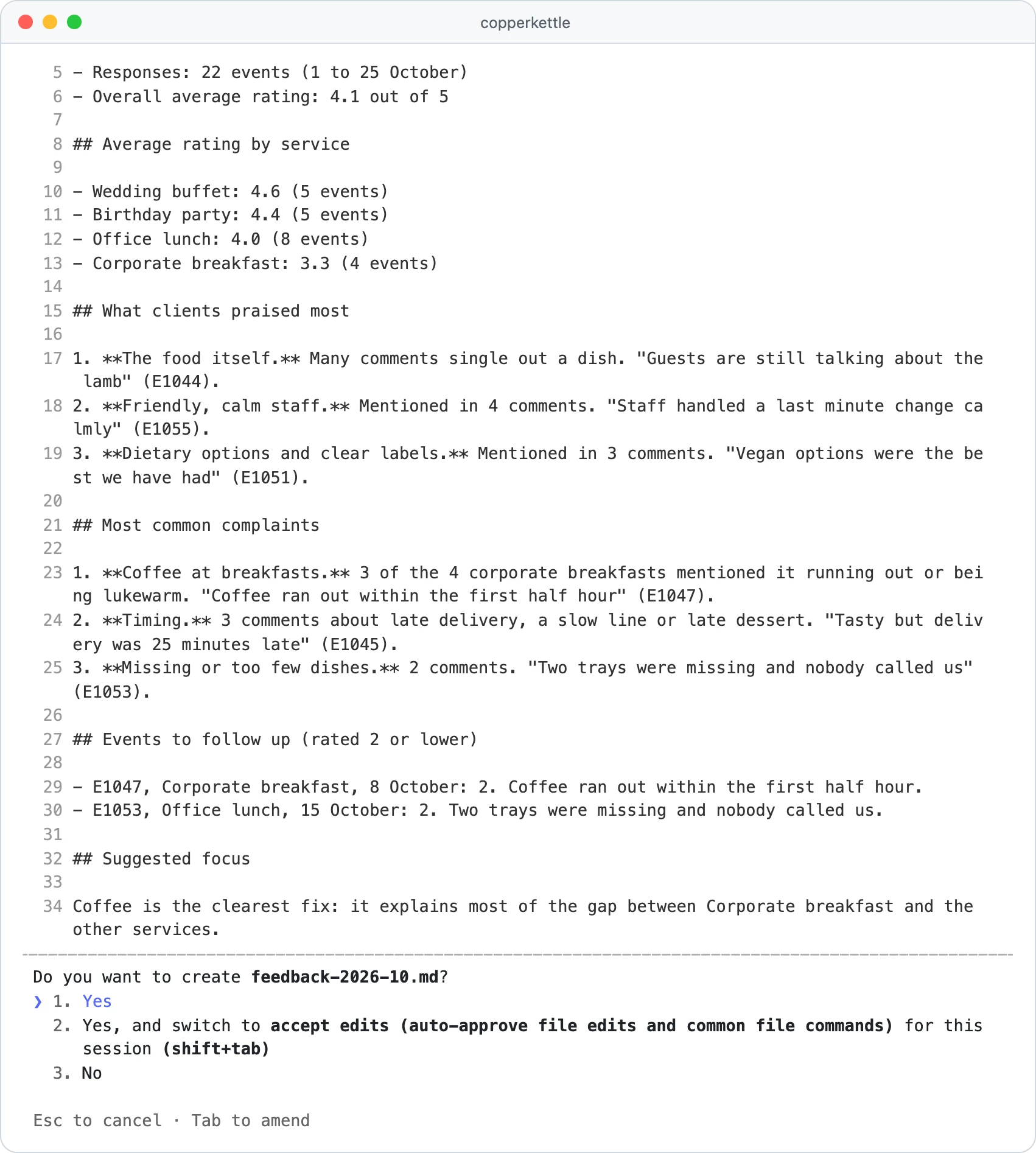
We ran this job on a made-up caterer's feedback export. In Manual mode, Claude Code asked before running its calculation and before saving the report, and its totals matched our own count: 22 events, average rating 4.1.
Prefer the terminal? The Claude Code quickstart installs it with one command on Mac, Linux or WSL (Windows uses irm https://claude.ai/install.ps1 | iex in PowerShell):
curl -fsSL https://claude.ai/install.sh | bash
cd ~/Desktop/test-folder
claude --permission-mode manual
What to check
0 of 3 done
Fifteen ready-made jobs are in Claude Code for non-developers, install help is in how to install Claude Code, and a first weekend project is in how to use Claude Code.
Lesson 7: Plans, models and limits
Goal: pick the plan that fits your work and stop running out of usage mid-task.
| Plan | Price (USD) | What it adds for this course |
|---|---|---|
| Free | $0 | Chat, web search, files, memory, connectors, Skills, up to 5 Projects |
| Pro | $20 a month, or $17 a month billed yearly ($200) | Tasks and scheduling, Claude Code, Research, more Projects and more models |
| Max | $100 (5x) or $200 (20x) a month | 5x or 20x Pro's usage per session, priority at busy times |
| Team | $25 a seat a month, or $20 billed yearly; Premium seats $125, or $100 | Shared Projects, SSO and central admin, for 2 to 150 people |
| Enterprise | $20 a seat a month billed yearly (20 seats minimum), plus usage at API rates | Audit logs, SCIM and spend limits set by admins |
Prices are from Claude's pricing page and the Help Center's Max plan article on October 25, 2026, before tax.
The current models are Opus 5.5, Sonnet 5.5, Haiku 5.5 and Fable 5.1. Free gets Sonnet and Haiku, Pro adds Opus, and Fable is available on Pro only through paid usage credits and on Max for up to half of the weekly limit. Anthropic's Claude Code usage guide gives a rule that works in chat too: Sonnet for most jobs, Opus for hard problems (it uses more of your limit), Haiku for quick ones.
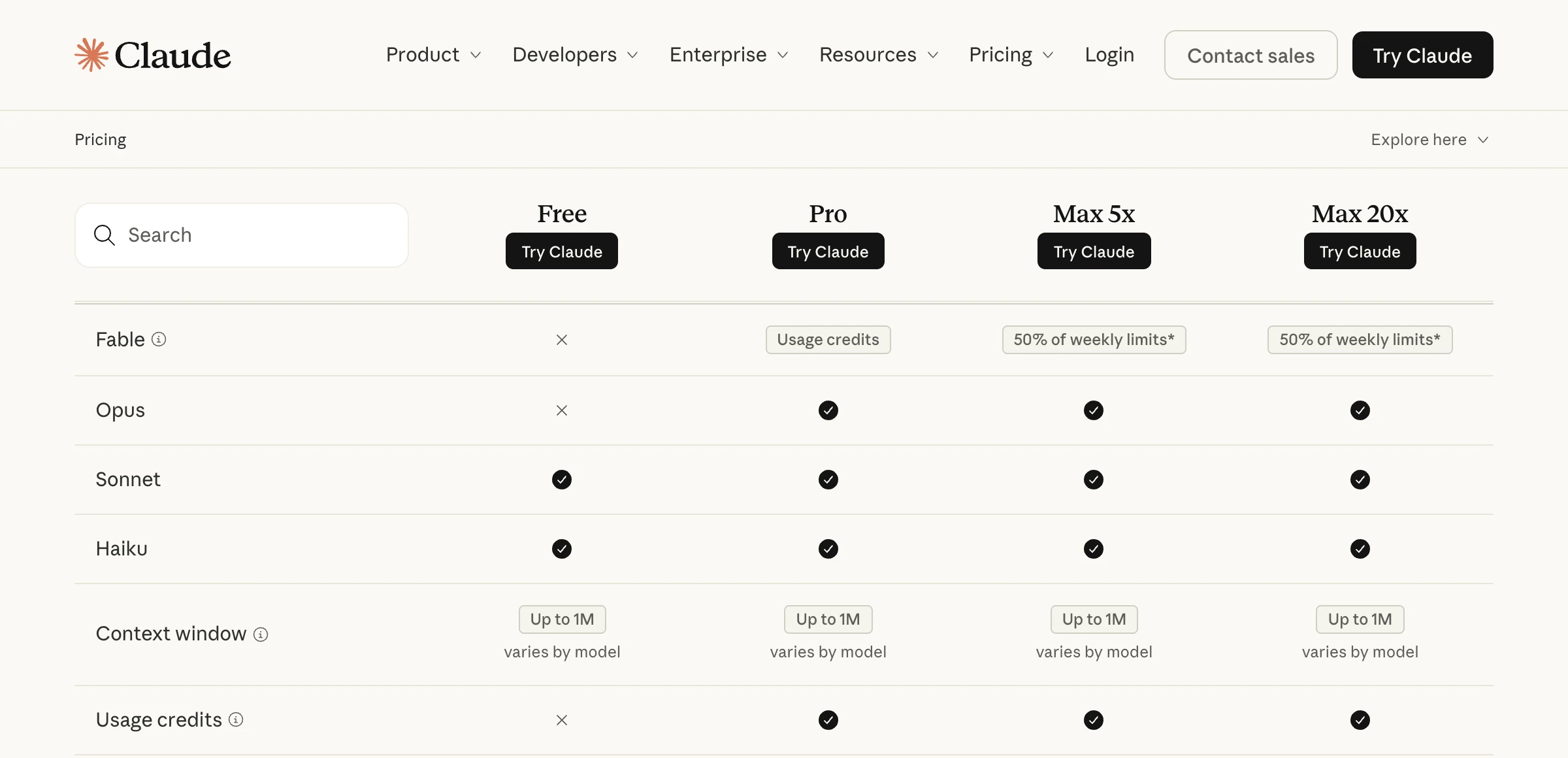
Every plan has a usage limit that resets on a rolling five-hour window, and paid plans add weekly limits. There is no fixed message count: long chats, big files, tools, the model and the effort level all change what a message uses. The web, desktop, mobile and Claude Code share one pool, and on paid plans Settings > Usage shows your bars.
From claude.com/pricing, October 25, 2026. Pro gives at least 5x the Free plan's usage per session.
- New topic, new chat. Long conversations cost more with every message.
- Reused documents go in a Project, where cached content counts less.
- Batch related questions and switch off connectors a chat does not need.
- Match model and effort to the job. Routine work rarely needs Opus at high effort.
Summarize this conversation as a brief I can paste into a new chat: the goal, the decisions we made, the facts and figures we settled, and what is still open. Keep it under 200 words.What to check
0 of 2 done
For a plan-by-plan breakdown see Claude Code pricing, and for what to do when you hit a wall, Claude Code usage limits.
Lesson 8: Put it together in one weekly routine
Goal: one recurring job that runs on a Project, a skill, a connector and a schedule.
Project
Files and rules for the job live in one place
Skill
The steps and the format, written once
Connector
Claude reads the source, such as a Drive sheet
Task
One run in Manual, checked by you
Schedule
The same task, every week
- Pick one boring, checkable job, such as a weekly sales summary.
- Run it by hand twice inside the project, and fix the skill after each run.
- Schedule it with the prompt below, on a paid plan.
Every [DAY] at [TIME], use the [SKILL NAME] skill on [THE SOURCE IN YOUR CONNECTED APP] and save the result as [A DOC OR A SPREADSHEET] in this project.
Put anything unusual at the top. If data is missing, say so instead of guessing.
Never send, share or delete anything.
What to check
0 of 3 done
Quick check0 of 3 correct
Which plan do you need to hand Claude a multi-step task and get a finished file back?
Not quite.
Tasks, scheduling and Claude Code start at Pro. Chat, files, Projects, Skills and connectors also work on Free.
Your price list is in a Project. Where do one-off instructions for today's job go?
Not quite.
Keep project instructions short and general. Claude cannot see the project description at all.
In Manual mode, Claude Code is about to create a file you did not expect. What do you do?
Not quite.
Manual mode waits for your answer before each file it creates or changes.
What to do next
Run lessons 1 to 4 this week on one real piece of work, then build the weekly routine from lesson 8 over the next two weeks. If lesson 6 is where you want to go further, our Claude Code course, open for pre-order in early access, takes people who have never written code from setup to real projects step by step. Either way, keep the loop this Claude AI training is built on: brief clearly, approve what matters, and check the result yourself.
The Claude course workbook
One exercise per lesson with a fill-in brief, a project setup sheet, a skill starter file and a weekly review checklist to keep using Claude well.
Enter your email and the full section opens right here. You also get a free lesson from the course.
Frequently asked questions
How long does this Claude course take?
Each lesson is written to fit in one sitting, so lessons 1 to 4 fit into a normal work week. The last lesson, a weekly routine, takes about two weeks because you check two runs before you trust it.
Do I need a paid Claude plan to follow this course?
No for lessons 1 to 4 and 7: chat, files, up to five Projects, Skills and connectors all work on the Free plan. Lessons 5 and 6, handing off tasks and Claude Code, need Pro or a higher plan, and so does scheduling in lesson 8.
Does Claude use my work chats to train its models?
On Free, Pro and Max you choose: open Settings, then Privacy, and switch off Help improve our AI models. Team and Enterprise plans do not train on your content by default, according to Claude's pricing page.
Can Claude remember things between chats?
Yes. Memory is on by default on Free, Pro and Max, and you can review, edit or pause it under Settings, then Your Claude (Settings, then Memory in the older layout). Each Project keeps its own memory, and incognito chats are not saved to your history.
Can I take this course on my phone?
Chats, connectors and tasks work in the Claude mobile apps, and a task you start at your desk shows up on your phone so you can answer Claude's questions. Setting up Skills is easier on a computer, and lesson 6 needs one, because Claude Code works on folders on your machine.
Keep reading
Claude Cowork vs Claude Code: Which to Use After the Merge
Claude Cowork vs Claude Code after the 2026 merge: what each does, which plans get it, which jobs go where, and your first task in each, step by step.
Claude Code · 14 min readHow to Create Claude Skills: 6 Steps and a SKILL.md Example
How to create a Claude skill: write SKILL.md, test it (we ran 18 trigger tests), upload it to the Claude app or let Claude write it, and fix what breaks.
Claude Code · 15 min readClaude Code for Non-Developers: 15 Real Examples by Job
Claude Code for non-developers: 15 real examples for marketing, sales, ops, finance and content, each with a copy-ready prompt. No coding or terminal needed.
Claude Code · 13 min read