Claude Code Plan Mode: Shortcut, Approval and When to Use It
Plan mode makes Claude read, ask and propose before it changes a file. Here is every way to turn it on, what each approval choice does, and when to skip it.
By Yotam DahanUpdated 15 min readClaude Code
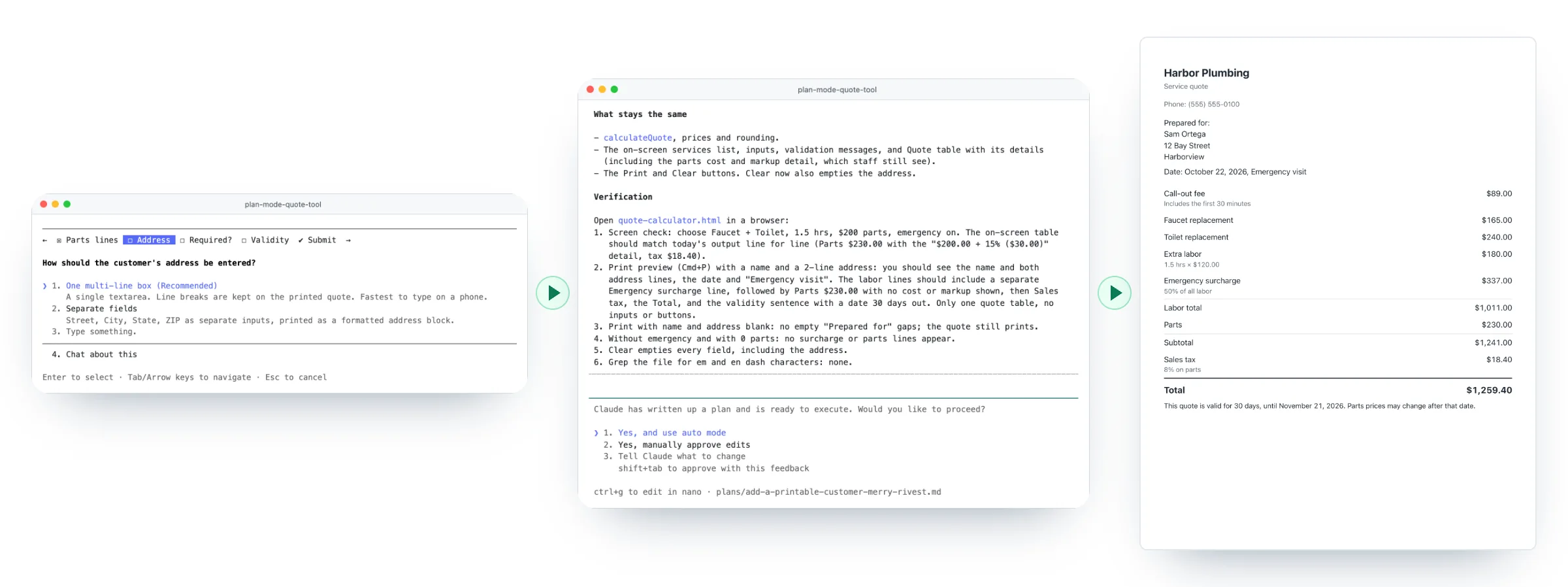
Claude Code plan mode is a permission mode where Claude reads your files, asks you questions and writes a step-by-step plan, but changes nothing in your project until you approve it. Turn it on with Shift+Tab until the line under the prompt reads ⏸ plan mode on, or type /plan followed by your task. When the plan is ready, you choose how Claude builds it, or you tell it what to change first.
What is plan mode in Claude Code?
Plan mode is one of Claude Code's permission modes: settings that decide what Claude may do without asking you. While it is on, Claude can read and search your files, look things up, run commands that only look (such as listing a folder), and ask you multiple-choice questions. For bigger projects it hands the reading to a built-in research helper, so the main conversation stays short.
If you searched for Claude plan mode, this is the feature you mean: it lives in Claude Code, not in the Claude chat app.
Can
Read and search your files, look things up, run commands that only look, and ask you questions.
Can't
Edit, create or delete project files, or run commands that change things, until you approve the plan.
Writes one thing
Its plan: a Markdown file you can read and edit before you say yes.
Commands that would change something are blocked or checked: a background safety check reviews them when auto mode is available, otherwise Claude asks first.
How to turn on plan mode in Claude Code
The Claude Code plan mode shortcut is Shift+Tab, which moves through the permission modes in a fixed order. New terminal sessions start in Auto, so it takes three presses: ⏵⏵ auto mode on becomes ⏸ manual mode on, then ⏵⏵ accept edits on, then ⏸ plan mode on (shift+tab to cycle). A fourth press brings you back to Auto.
| Way in | What you type | Best when |
|---|---|---|
| Keyboard | Shift+Tab until ⏸ plan mode on | You're already in a session |
| Slash command | /plan, or /plan [YOUR TASK] | You want to switch and start in one step |
| At startup | claude --permission-mode plan | The whole session is for planning |
| Every session in a project | "permissions": {"defaultMode": "plan"} in .claude/settings.json | A folder where you always want a plan first |
One catch we hit: /plan with a task only works when it switches you into plan mode. Typed while you're already in plan mode, it replies "Already in plan mode. No plan written yet." and the task goes nowhere, so just type the request.
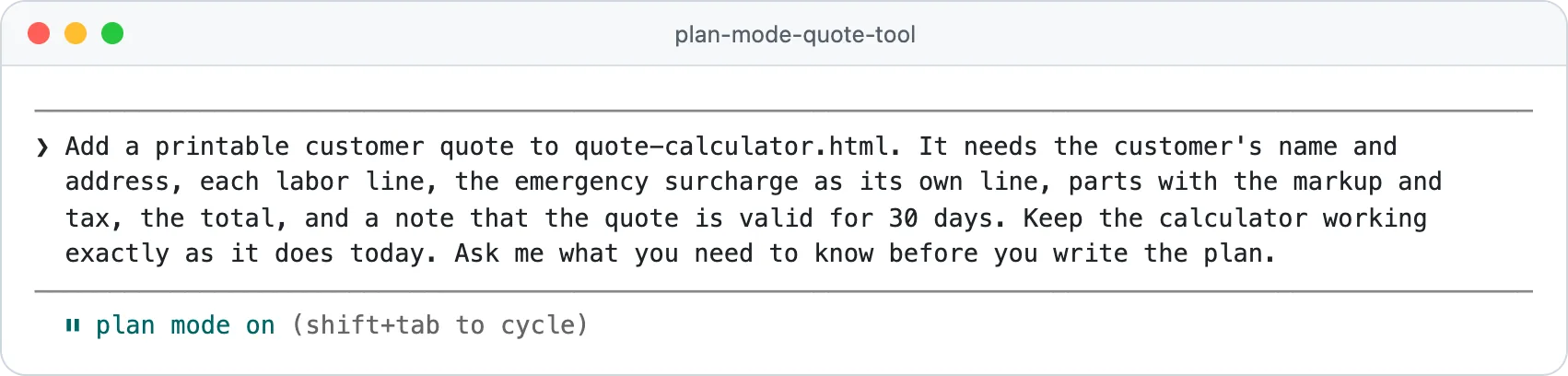
To start a session in plan mode straight from your project folder:
cd ~/Desktop/my-project
claude --permission-mode plan
The same command works in PowerShell on Windows.
In the desktop app, VS Code and JetBrains
- Claude desktop app (Code tab): pick Plan in the mode selector under the prompt box, or press Cmd+Shift+M (Ctrl+Shift+M on Windows) to open the mode menu. Shift+Tab doesn't switch modes there, and Plan lasts only for the current session, while the other modes are remembered per folder. Once there is a plan, a Plan pane is listed in the ⋮ menu of the session's title bar.
- VS Code: click the mode indicator at the bottom of the prompt box and choose Plan, or type
/plan. The plan opens as a full Markdown document where you can add comments before Claude starts. - JetBrains: Claude Code runs in the IDE's terminal, so Shift+Tab works exactly as above.
How to use Claude Code plan mode, step by step
Here is how to use Claude Code plan mode on a real job. Harbor Plumbing, our made-up demo business, has a quote calculator: one HTML file plus a price list with rules, such as a 50% emergency surcharge on labor and parts at cost plus 15%. We asked for a printable customer quote, the kind of change to a working tool where a plan pays off.
Ask
Describe the result you want, in plain English
Answer
Claude asks about anything unclear
Read
Claude shows its plan and waits
Choose
Approve, edit the plan, or say what to change
Build
Claude makes the changes in the mode you picked
This is the brief we sent, with the details made general so you can reuse it:
Add [WHAT YOU WANT] to [YOUR FILE OR PAGE]. It needs [EVERYTHING THAT MUST BE ON IT]. Keep [THE PART THAT WORKS TODAY] working exactly as it does today. Ask me what you need to know before you write the plan.The last sentence matters. In our first run, without it, Claude asked nothing and showed a plan after about 37 seconds; with it, four questions came first.
Answer Claude's questions
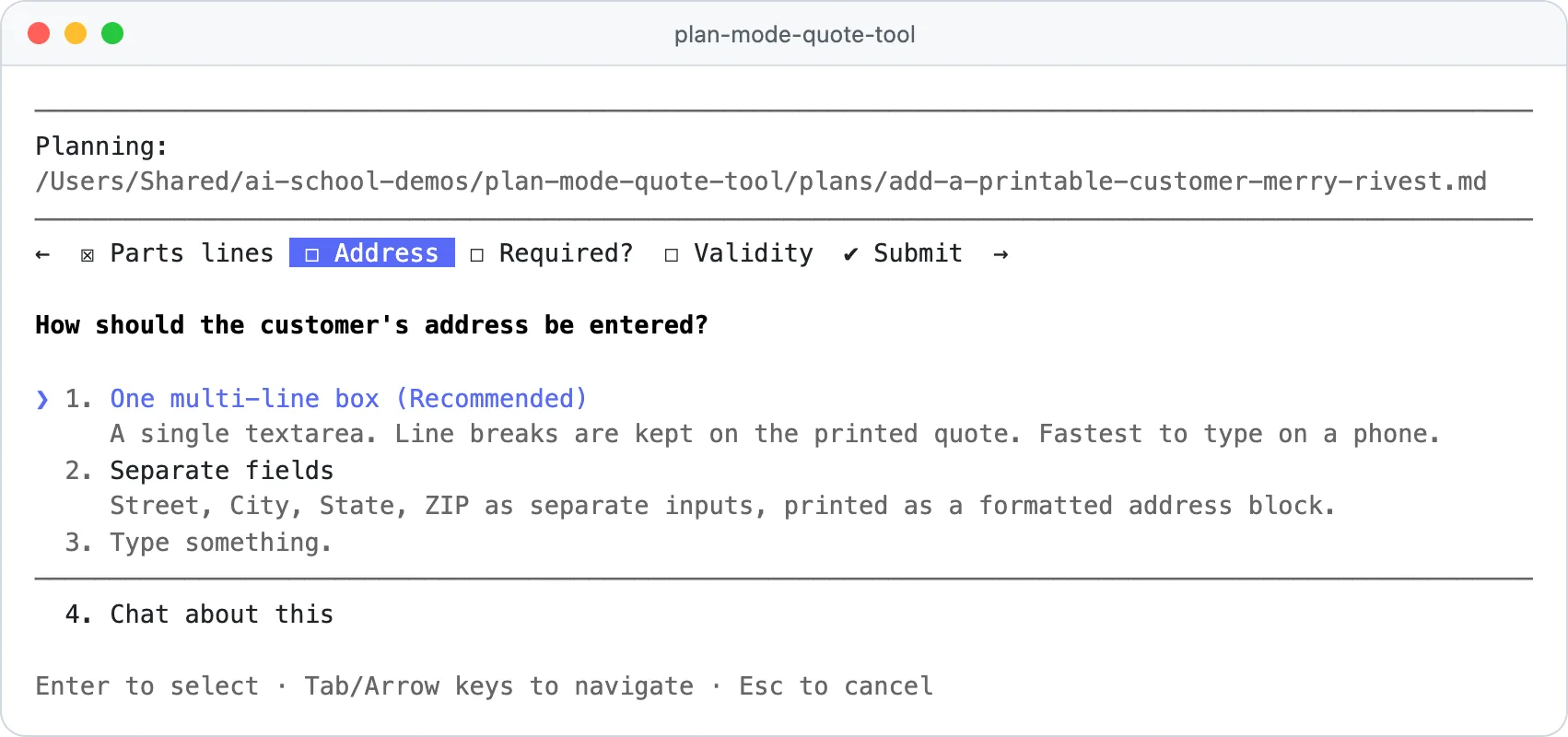
Claude read both files and came back in 20.7 seconds with four questions, shown as tabs: Parts lines, Address, Required? and Validity. Pick an answer with the arrow keys and Enter, choose Type something. to write your own, or Chat about this to discuss it. A Review your answers screen comes before Submit answers.
The first question was the one that earned its keep. Today the calculator's Parts line shows "$200.00 + 15%", which would tell a customer the company's cost and markup. Claude spotted it and asked how parts should appear. We chose to hide the markup.
Read the plan before you approve it
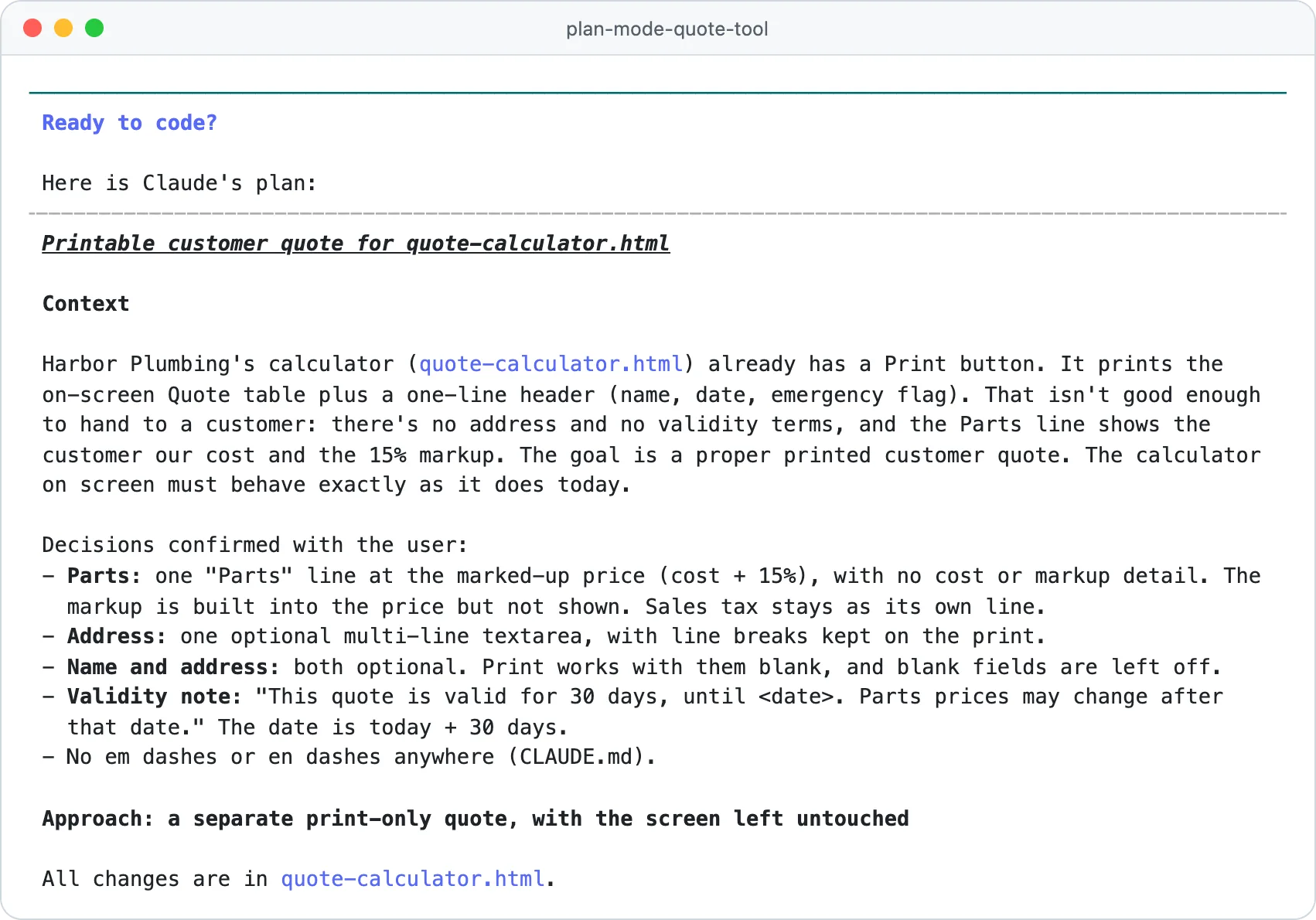
The plan appeared 24.4 seconds after we submitted the answers, under Ready to code? and Here is Claude's plan:. It ran to 55 lines: the context with our four decisions, five numbered changes, a "What stays the same" section and six checks to run afterwards. Read it like a quote from a contractor:
0 of 5 done
Edit the plan or tell Claude what to change
You have two ways to change a plan before anything is built.
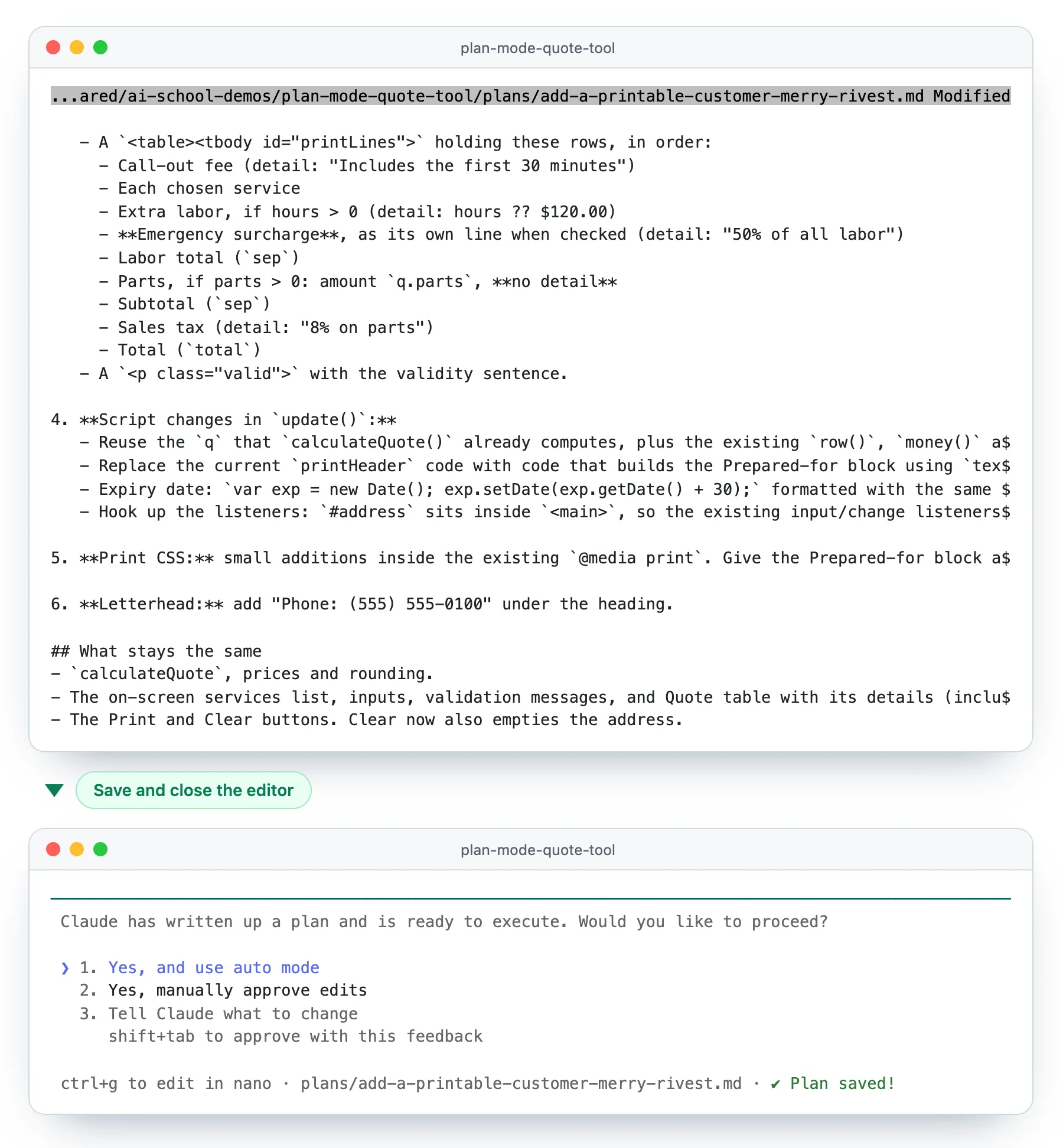
- Edit it yourself: press Ctrl+G. The plan opens in your text editor; save, close, and Claude works from your version. We added a step for the phone number on the letterhead this way.
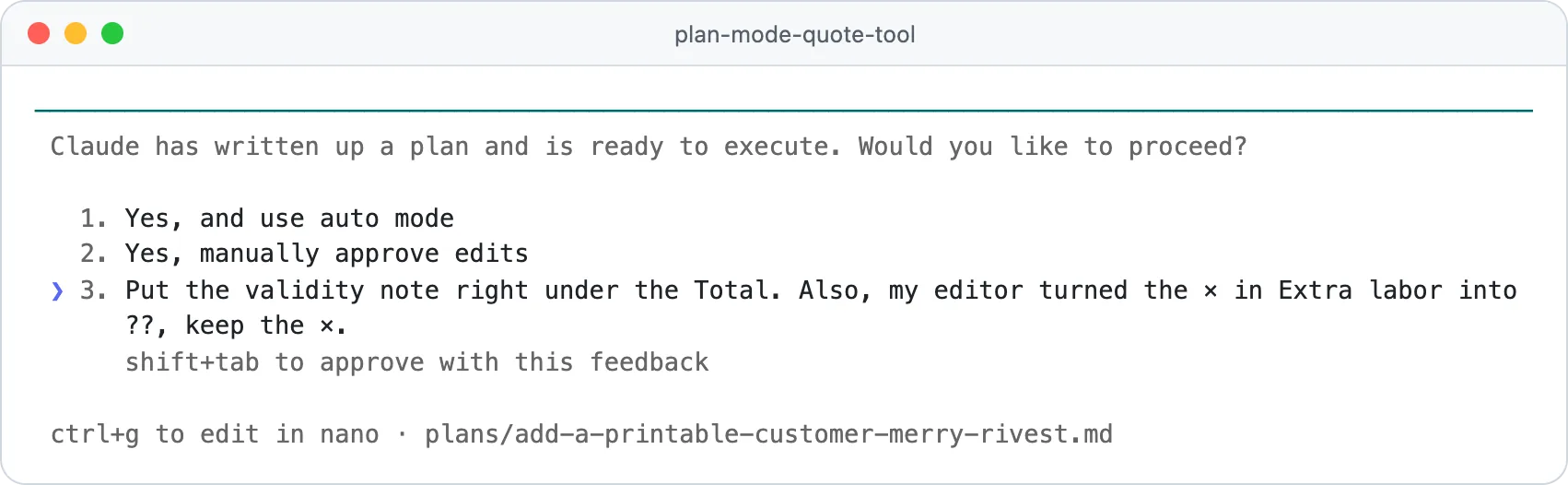
- Tell Claude: move to the last option, Tell Claude what to change, type your note and press Enter.
questions Claude asked when our brief invited them
seconds from our answers to the finished plan
lines in the plan we approved
edits we approved one by one, all in one file
Our session on Claude Code 2.1.303 with Opus 5.5, October 22, 2026, on the Harbor Plumbing demo files. The file grew by 69 lines and lost 11.
The plan approval choices, and how to exit plan mode
Under the plan, Claude Code asks: "Claude has written up a plan and is ready to execute. Would you like to proceed?" These are the options in version 2.1.303:
| You pick | What happens next | Pick it when |
|---|---|---|
| Yes, and use auto mode | Claude builds, and a background safety check approves routine steps | You trust the plan and the folder holds nothing sensitive |
| Yes, manually approve edits | Claude builds and asks before each change | Your first plans, or files that matter |
| Tell Claude what to change | You stay in plan mode and Claude revises | Something in the plan is wrong or missing |
Anthropic's docs call the third option No, keep planning; in 2.1.303 it is a text box with the hint "shift+tab to approve with this feedback", so Shift+Tab approves and sends your note in one go. If auto mode isn't available to you, the first option reads Yes, auto-accept edits instead.
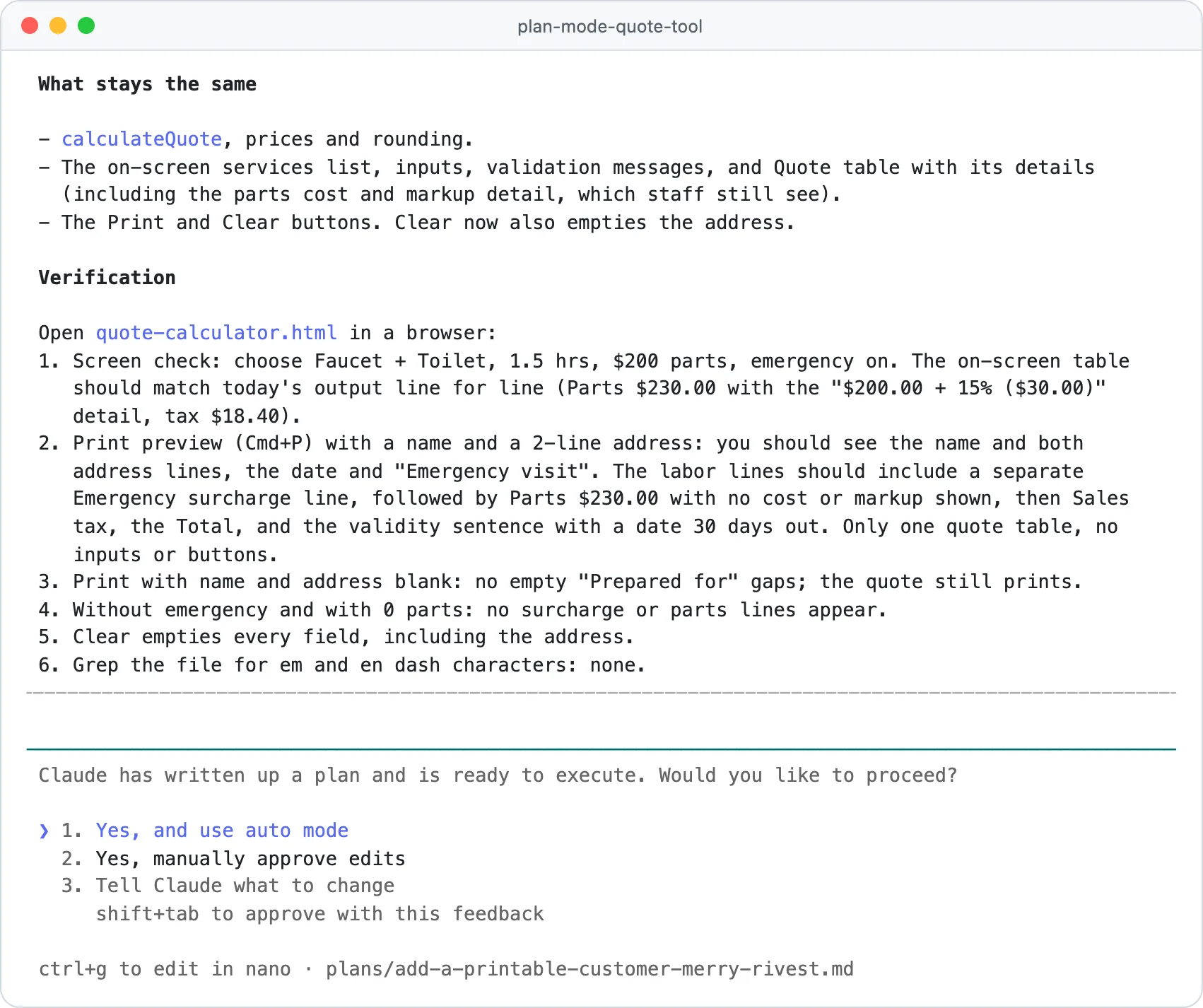
A setting called showClearContextOnPlanAccept adds a first option that also clears the conversation and builds from the plan alone, labeled with the share of Claude's context (its working memory for the conversation) the planning used. Ours read "Yes, clear context (5% used) and use auto mode", so it only matters after very long planning sessions.
We picked Yes, manually approve edits. The status line switched to ⏸ manual mode on, the session took the plan's name ("printable-customer-quote"), and the first edit request came about 5 seconds later.
How to exit plan mode in Claude Code
Approve the plan with either Yes option, or press Shift+Tab to move to the next mode without approving. Esc doesn't take you out: it stops Claude's current step, or closes the approval dialog, and the line still reads ⏸ plan mode on. In the desktop app, pick another mode in the selector. To plan again later, cycle back with Shift+Tab or start your next message with /plan.
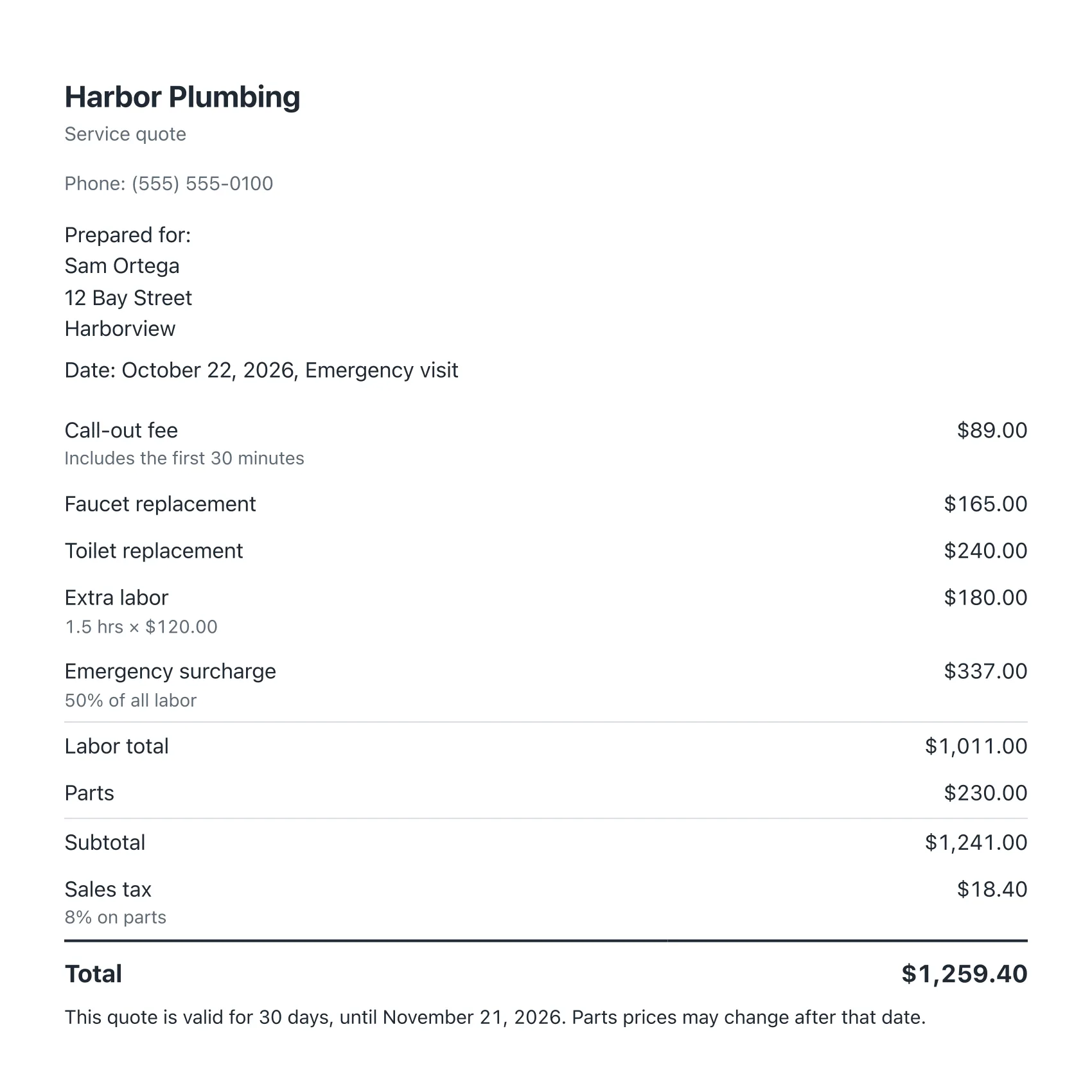
Here is what came out the other end. One file changed, the calculator on screen still gives the same total as before ($1,259.40 for our test job), and the printout is a quote you could hand to a customer:
Claude Code plan mode vs accept edits, auto and manual
The four everyday modes differ in who says yes, and when:
| Mode | Edits your files | Runs other commands | Who approves | Use it for |
|---|---|---|---|---|
| Plan | No, only its plan | Only commands that look | You, once, for the whole plan | Deciding what to do |
| Manual | After you OK each one | After you OK each one | You, at every step | First runs and sensitive files |
| Accept edits | Yes | Simple file commands; others ask | You review afterwards | Building a plan you trust |
| Auto | Yes | Yes, after a background safety check | A second AI model | Long, routine work |
Our Claude Code cheat sheet lists every status line and explains what --dangerously-skip-permissions does.
When plan mode is worth it, and when to skip it
Anthropic's best practices guide gives a simple rule: plan when you're unsure of the approach, when the change touches several files, or when you don't know the files well. If you could describe the change in one sentence, skip the plan.
- Plan: changing how a tool calculates prices, turning a one-page site into several pages, reorganizing a folder of client files.
- Skip: fixing a typo, changing a button color, adding one line of text.
Some developers now argue the newest models plan well enough on their own. If you don't read code, though, the plan is the one place to catch a wrong assumption in plain English before any file changes, and people use it:
Anthropic's figures in its post Auto mode is now the default in Claude Code, August 7, 2026.
Pick the model for planning: opus plan mode
Claude Code's default model on every paid plan is already Opus 5.5, so you plan on Opus anyway. The opusplan setting, sometimes called Opus plan mode, keeps Opus for the plan and switches to Sonnet for the build. Anthropic's support article on models and limits says "Opus costs several times more per turn than Sonnet", so that stretches your plan.
Our /model menu didn't list it, so type /model opusplan (it becomes your default; /model default undoes it). More ways to save usage are in our guide to Claude Code usage limits.
Planning mode in other AI coding tools
Most AI coding agents now have a planning mode. Names and keys differ; the idea is the same: read, ask, propose, wait.
| Tool | Plan mode name | How to turn it on | What happens next |
|---|---|---|---|
| Claude Code | Plan mode | Shift+Tab, /plan or claude --permission-mode plan | Approve, or tell Claude what to change |
| Cursor | Plan Mode | Shift+Tab in the chat input, or the mode picker | Build from the plan, or save it to the workspace |
| GitHub Copilot in VS Code | Plan agent | Plan in the agents dropdown, or /plan | Start Implementation hands the plan to the agent |
| GitHub Copilot CLI | Plan mode | Shift+Tab cycles in and out | Agree the plan before any code is written |
| OpenAI Codex | Plan mode | /plan in the Codex CLI | Codex proposes a plan before it starts the work |
| Gemini CLI | Plan Mode | Shift+Tab, /plan or gemini --approval-mode=plan | Approve with edits accepted automatically or manually |
| Google Antigravity | Plan | /plan in the app or CLI, or agy --mode=plan | Proceed on the Implementation Plan |
| Devin Desktop (formerly Windsurf) | Plan mode | The mode selector, or ⌘+. (Ctrl+. on Windows) | Implement on the plan file |
From each tool's own docs on October 22, 2026, including Cursor's Plan Mode page, VS Code's planning guide and Antigravity's /plan docs. Kiro goes a step further with specs, requirement and task files kept in the project, and app builders such as Lovable and Replit have a Plan mode too.
How the agents compare beyond planning is in Claude Code vs Cursor, Claude Code vs GitHub Copilot and our roundup of the best AI coding agents.
Plan mode not working? Quick fixes
| What you see | Why | Fix |
|---|---|---|
| Shift+Tab does nothing (Windows) | Some Windows setups don't pass the key to Claude Code | Press Alt+M, or type /plan |
| Shift+Tab does nothing in the desktop app | The Code tab uses a mode selector instead | Use the selector, or Cmd+Shift+M (Ctrl+Shift+M) |
| Two presses landed you in Accept edits | New sessions start in Auto, so Plan is the third press | Press once more and check the line reads ⏸ plan mode on |
| Claude asked no questions | The brief didn't invite any | End it with "Ask me what you need to know before you write the plan" |
| Ctrl+G opened a black screen with tildes | That's Vim, the fallback editor | Type :wq and press Enter |
| Plan mode was gone after you reopened a session | Older versions didn't restore it on resume | Run claude update (fixed in version 2.1.292) |
Quick check0 of 3 correct
You open a brand new Claude Code session in the terminal. How many times do you press Shift+Tab to reach plan mode?
Not quite.
New sessions start in Auto, so the presses go Manual, Accept edits, then Plan.
The plan is almost right but adds a feature you don't want. What's the quickest fix?
Not quite.
Changing a plan costs a sentence; undoing finished work costs far more.
Which job is worth plan mode?
Not quite.
Anthropic's rule of thumb: if you can describe the change in one sentence, skip the plan.
What to do next
Pick one change you've been putting off on a tool or page you already have, open its folder in Claude Code, press Shift+Tab three times and describe the result, ending with "Ask me what you need to know before you write the plan." Read the plan against the checklist above, then choose Yes, manually approve edits and watch each step. If you're new to Claude Code, the Claude Code tutorial for beginners walks through a first project end to end, and the Claude Code course, open for early access, teaches the whole workflow from setup to finished projects.
Plan mode kit: 6 prompts and a plan review checklist
Six copy-paste planning prompts for business jobs, a 10-point checklist for reading a plan before you approve it, and settings for plan mode by default.
Enter your email and the full section opens right here. You also get a free lesson from the course.
Frequently asked questions
Where does Claude Code save my plans?
In a plans folder in your home directory, ~/.claude/plans, as Markdown files named after the first words of your request plus two random words. To keep plans with the project instead, add "plansDirectory": "./plans" to the project's .claude/settings.json; the path has to stay inside the project folder.
What happened to /ultraplan?
Anthropic removed it in August 2026, in version 2.1.222. It was a research preview that drafted the plan in a cloud session you reviewed in the browser. Use plan mode in your own session instead, or hand the finished plan to a cloud session.
Does plan mode use fewer tokens?
Not by itself: Claude still reads files and thinks while it plans, and Anthropic publishes no figure for savings. The saving its docs describe is the rework you skip when the first direction is wrong. After our whole job, plan and build, the conversation held 58.9k tokens, 6% of Claude's 1M-token context window.
Can I use plan mode in the browser or on my phone?
Yes. On claude.ai/code, pick Plan in the mode dropdown next to the prompt box. In the Claude mobile app, tap the + button in the prompt box, then Permission.
Does Claude Cowork have a plan mode?
No. Cowork, now part of the main Claude app, has its own Manual and Auto settings instead of Claude Code's modes. Asking it to show its plan and wait for your OK before it starts gives you a similar checkpoint.
Keep reading
How to Use Claude Code: 9-Step Tutorial for Beginners (2026)
Learn how to use Claude Code step by step on a real project: build a one-page business site with plan mode, permissions and rewind, plus 10 beginner tips.
Claude Code · 15 min readClaude Code Commands Cheat Sheet (2026): Shortcuts and Flags
Claude Code commands cheat sheet: 60+ slash and CLI commands, 20+ shortcuts, config files and fixes, plus a free printable one-pager. Checked October 2026.
Claude Code · 18 min readClaude Code Usage Limits 2026: The 5-Hour and Weekly Caps
Claude Code usage limits: how the 5-hour and weekly caps work on Pro, Max and Team, when they reset, how to check your usage and 8 ways to save tokens.
Claude Code · 15 min read